You’ll need:
A Business Plan
Money in your Wallet to activate and pay for SMS costs.
To make sure you have SMS turned ON under Company - Settings - SMS! (I forgot to mention this in the video!)
Mentioned in the video. Use these variables.
{
  "recipientName": "{{contact.name}}",
  "recipientEmail": "{{contact.email}}",
  "recipientPhone": "{{contact.phone_raw}}",
  "message": "Hi %recipient_first_name%, thanks for booking with %company_name%. Here's %professional_name%'s business card. Open & tap save so you know who's calling at your appointment time! %card_url%",
  "professionalEmail": "{{user.email}}"
}https://loom.com/share/6f72e31ab86244329e4157ebf28d2742
1. Introduction to Sending Referral Cards 0:00
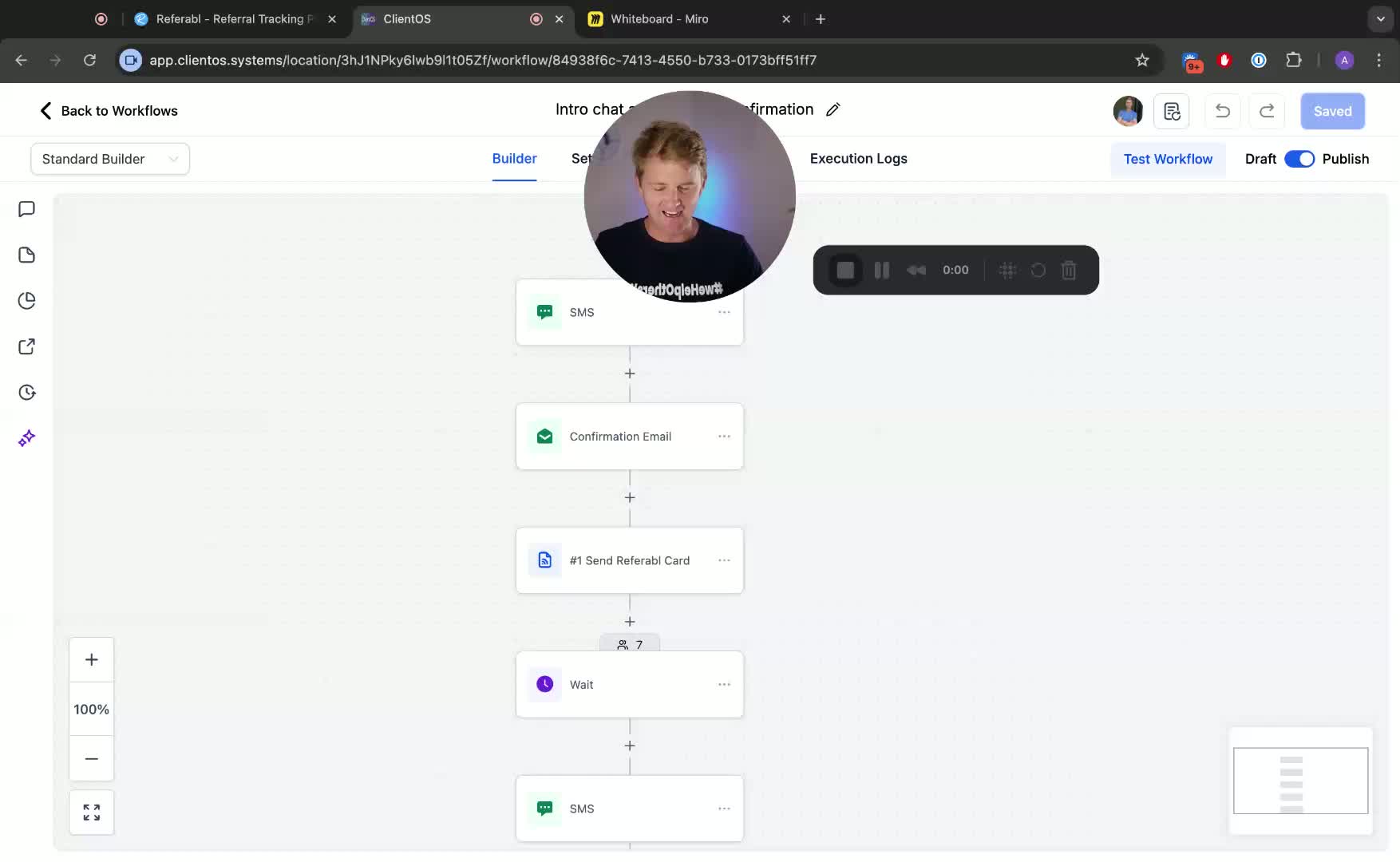
Overview of the process to send personalized referral cards systematically.
Mention of using Referrable and webhooks.
2. Sending Individual Referral Cards 0:19
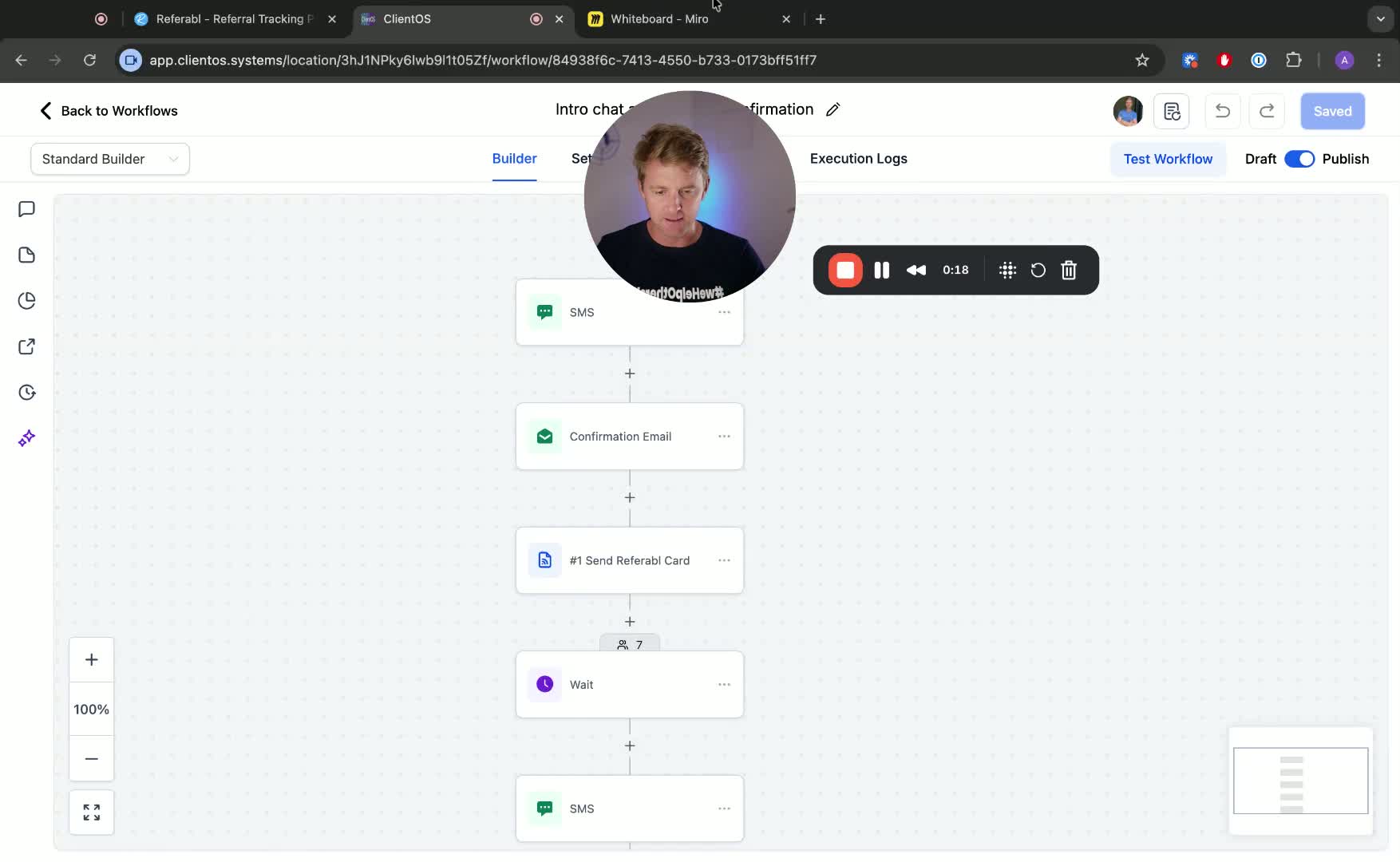
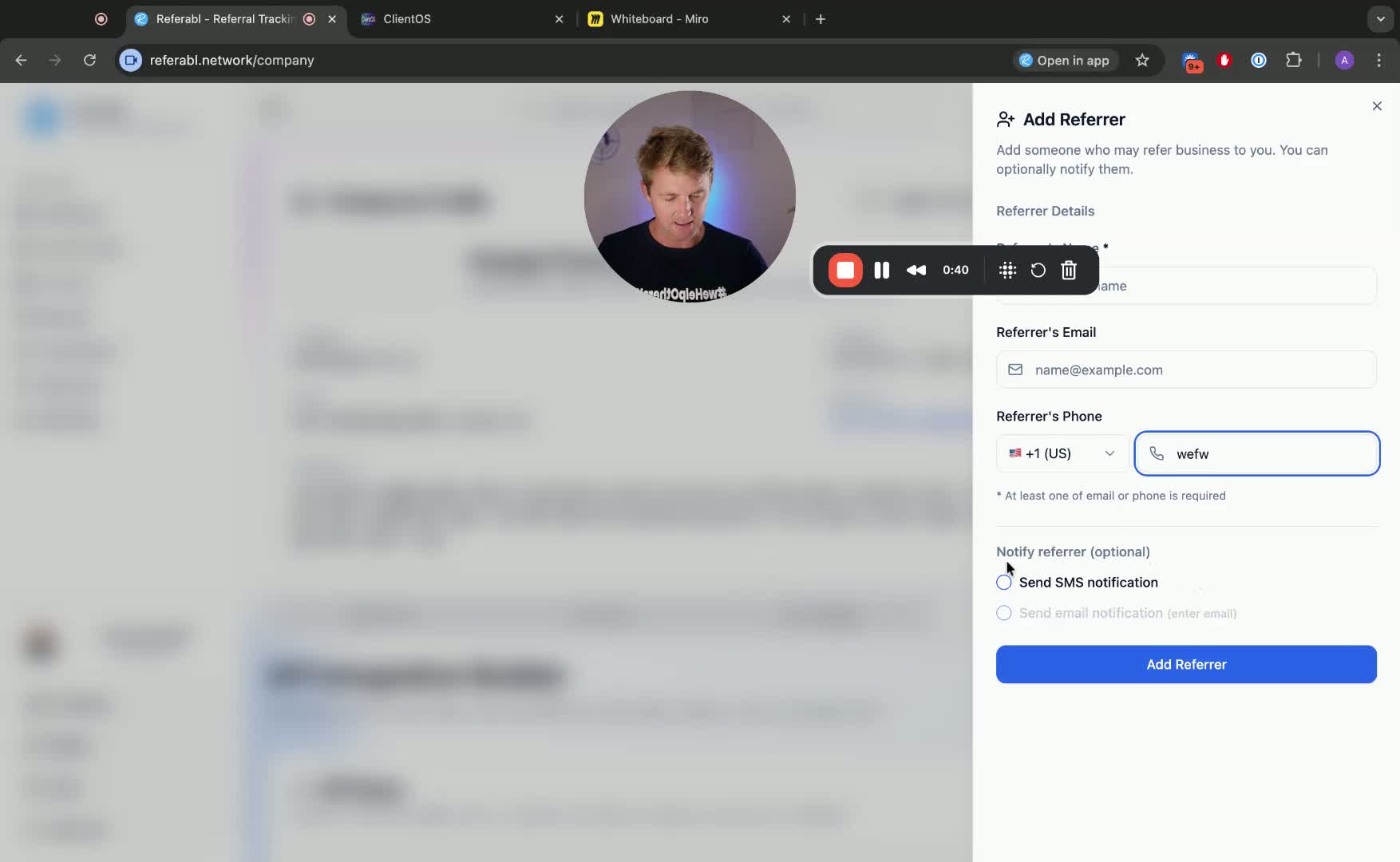
To send referral cards individually:
Click the plus button in the top right corner of Referrable.
Enter name, email, and phone number.
Best to send via SMS.
3. Ensure Wallet Activation 0:41
Important to activate your wallet and ensure sufficient funds for SMS costs.
Instructions to top up wallet:
Go to Billing > Wallet.
4. Understanding Webhooks 1:20
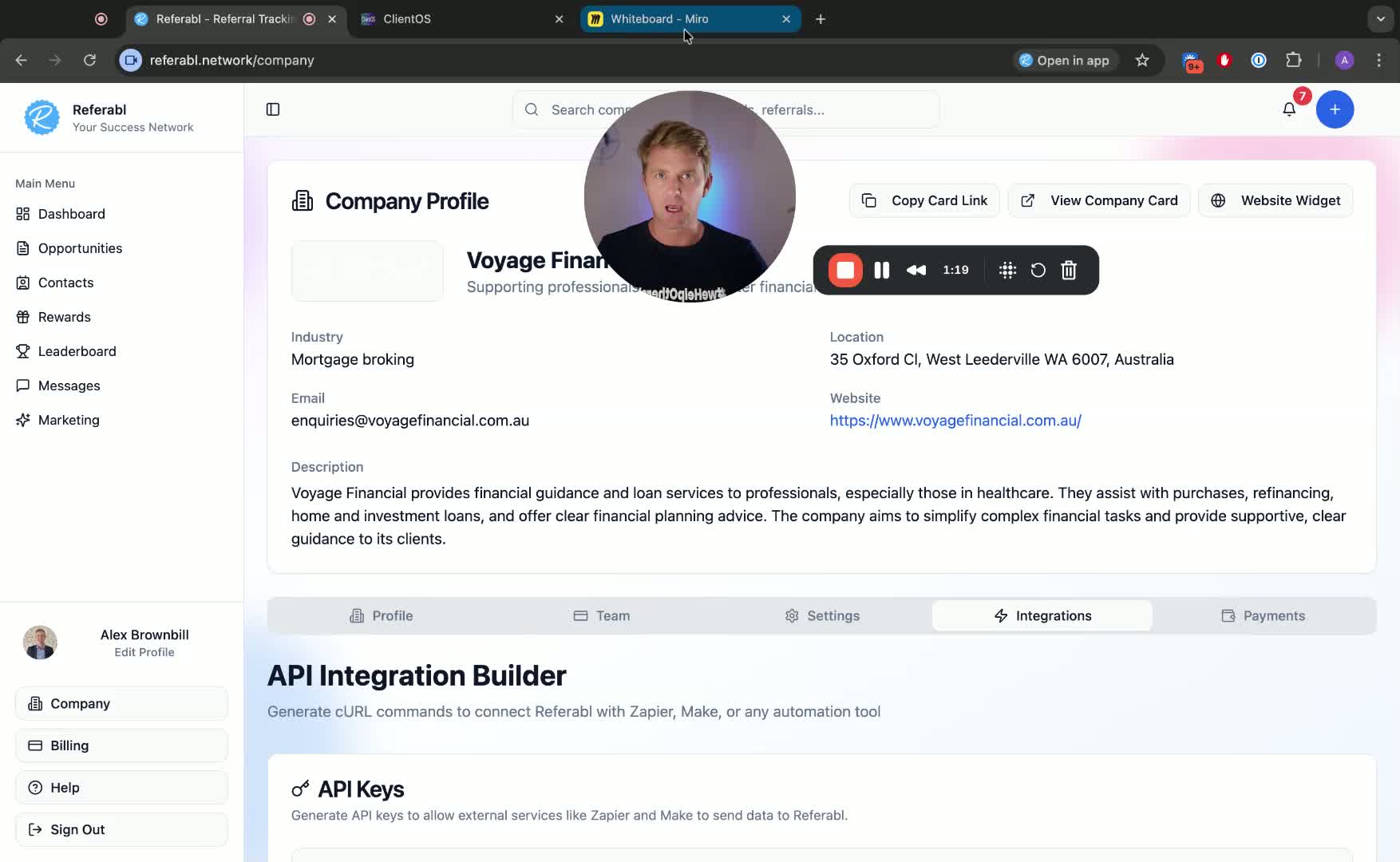
Definition of webhooks: a way to send information from one software application to another.
Common tools for webhooks: Zapier, Make, High Level.
5. Setting Up the Trigger in Client OS 2:48
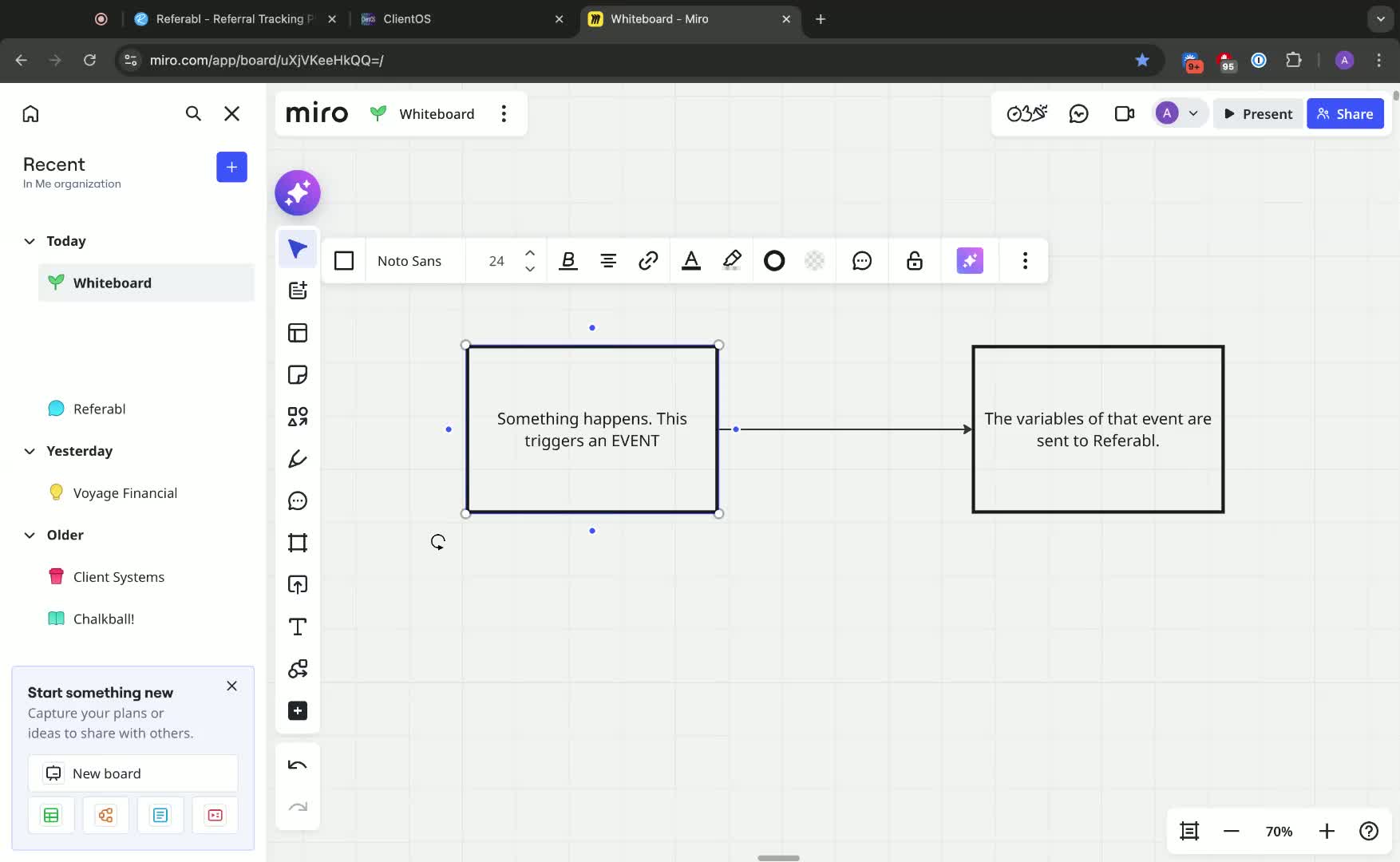
Navigate to Workflows in Client OS.
Set up a trigger for when an introductory appointment is booked.
6. Configuring the Webhook in Referrable 4:14
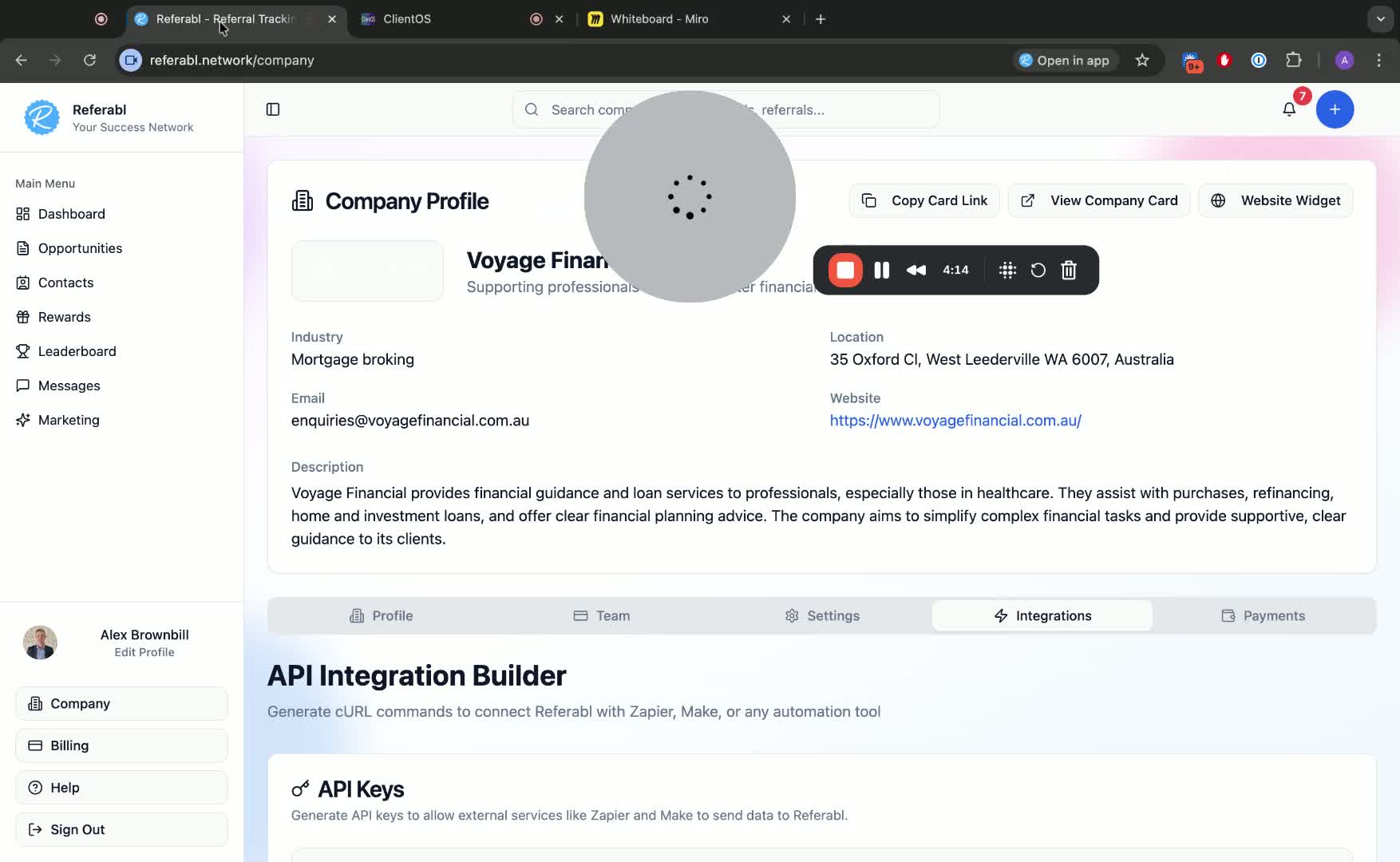
Create an API key in Referrable for authorization.
Select the action to send a referral card via SMS or email.
7. Customizing the Webhook Request 5:34
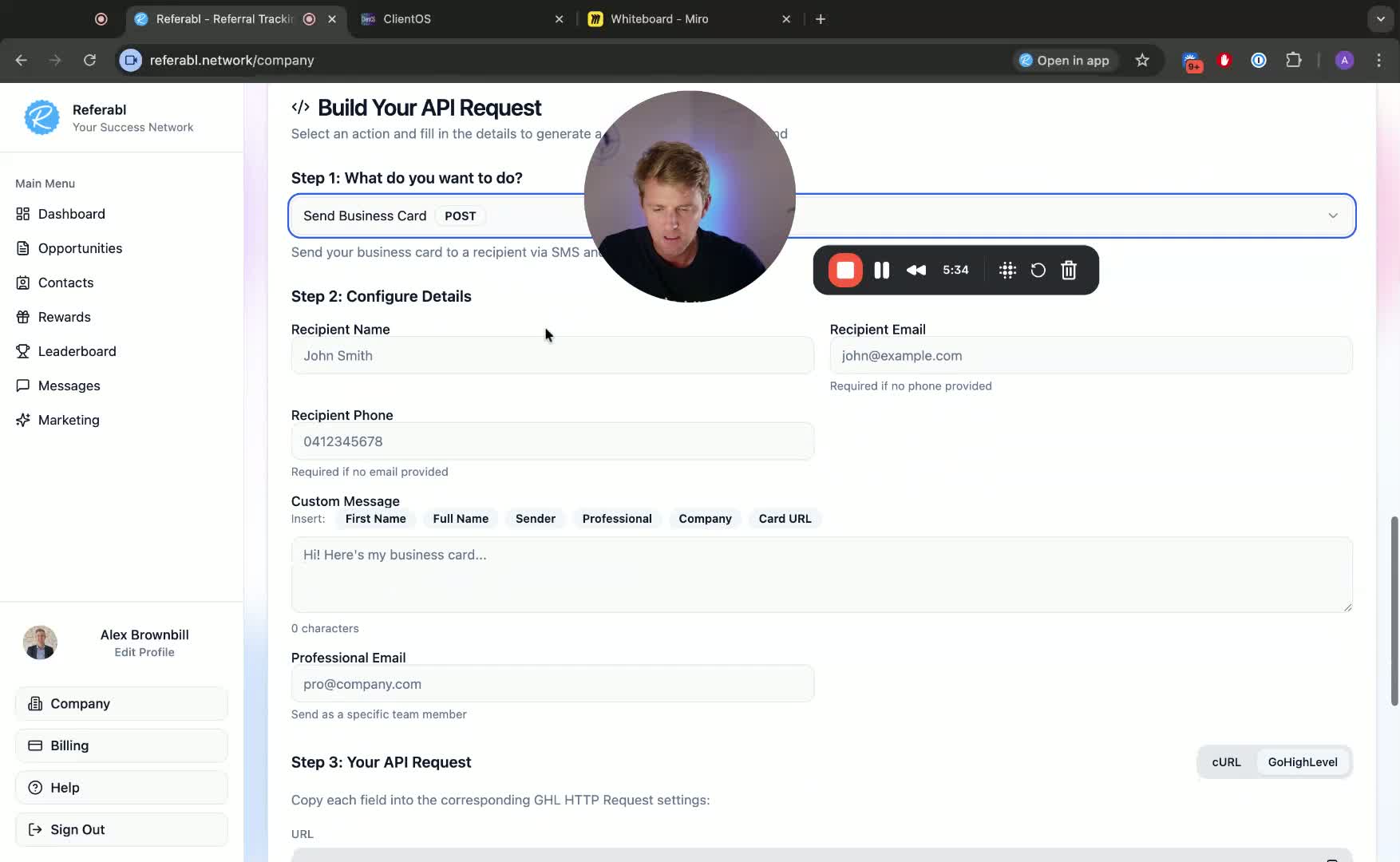
Enter a standard custom message for the referral card.
Ensure to include the URL for the card.
8. Saving the API Request 7:57
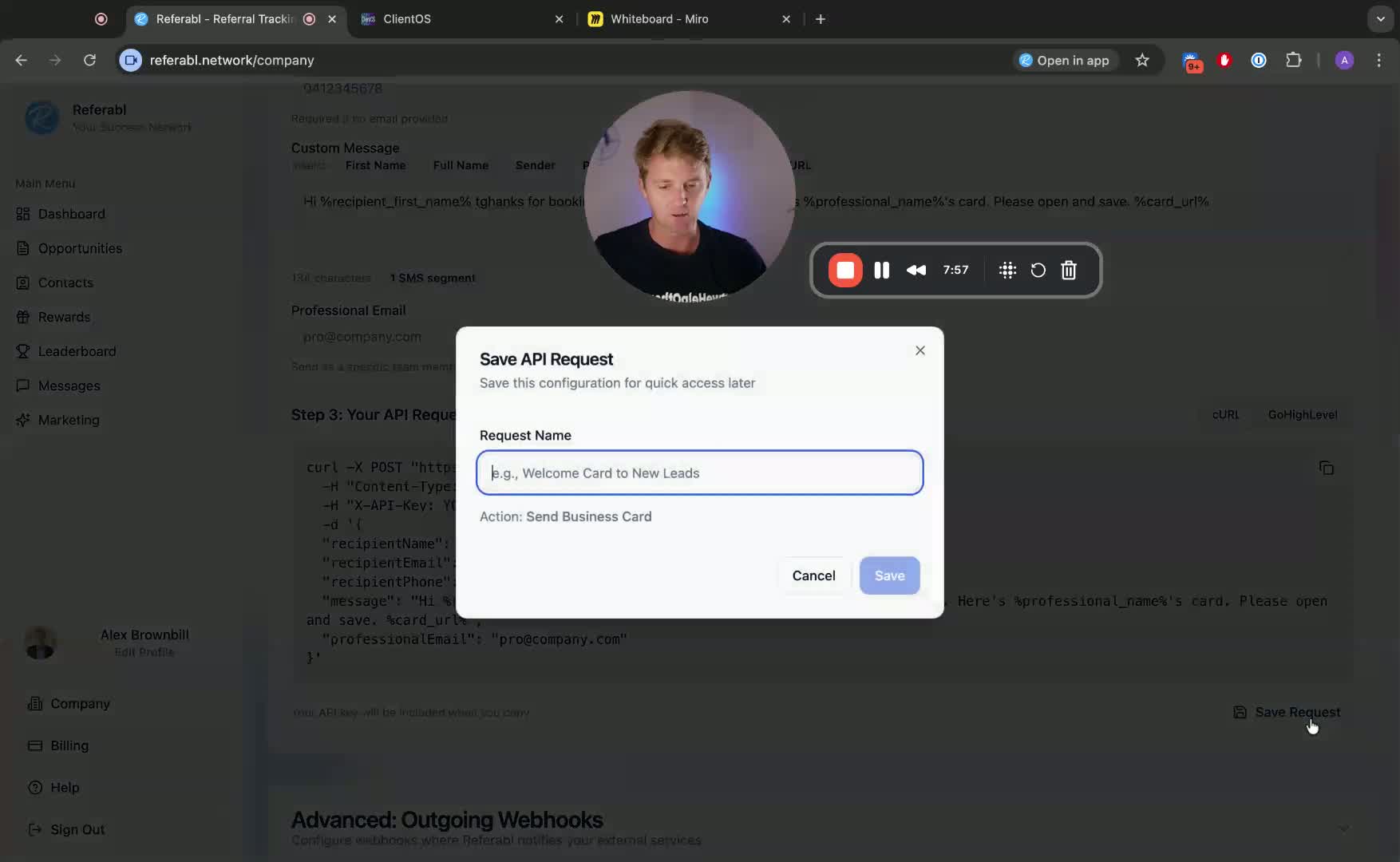
Save the API request for future modifications.
9. Integrating with High Level 8:59
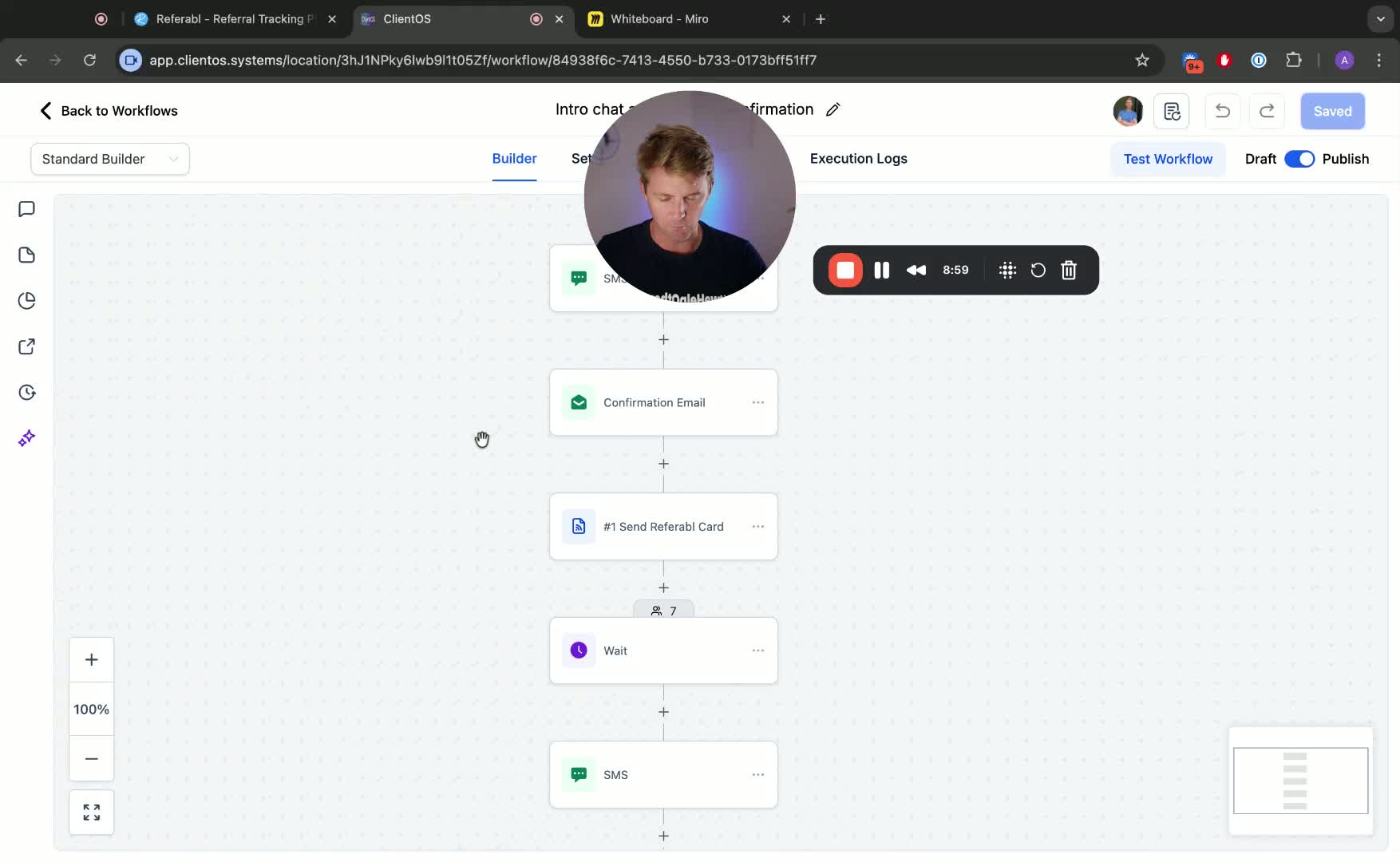
Set up a custom webhook in High Level:
Choose the event that triggers the webhook.
Ensure the method is POST and set the correct URL.
10. Adding Headers for the Webhook 9:49
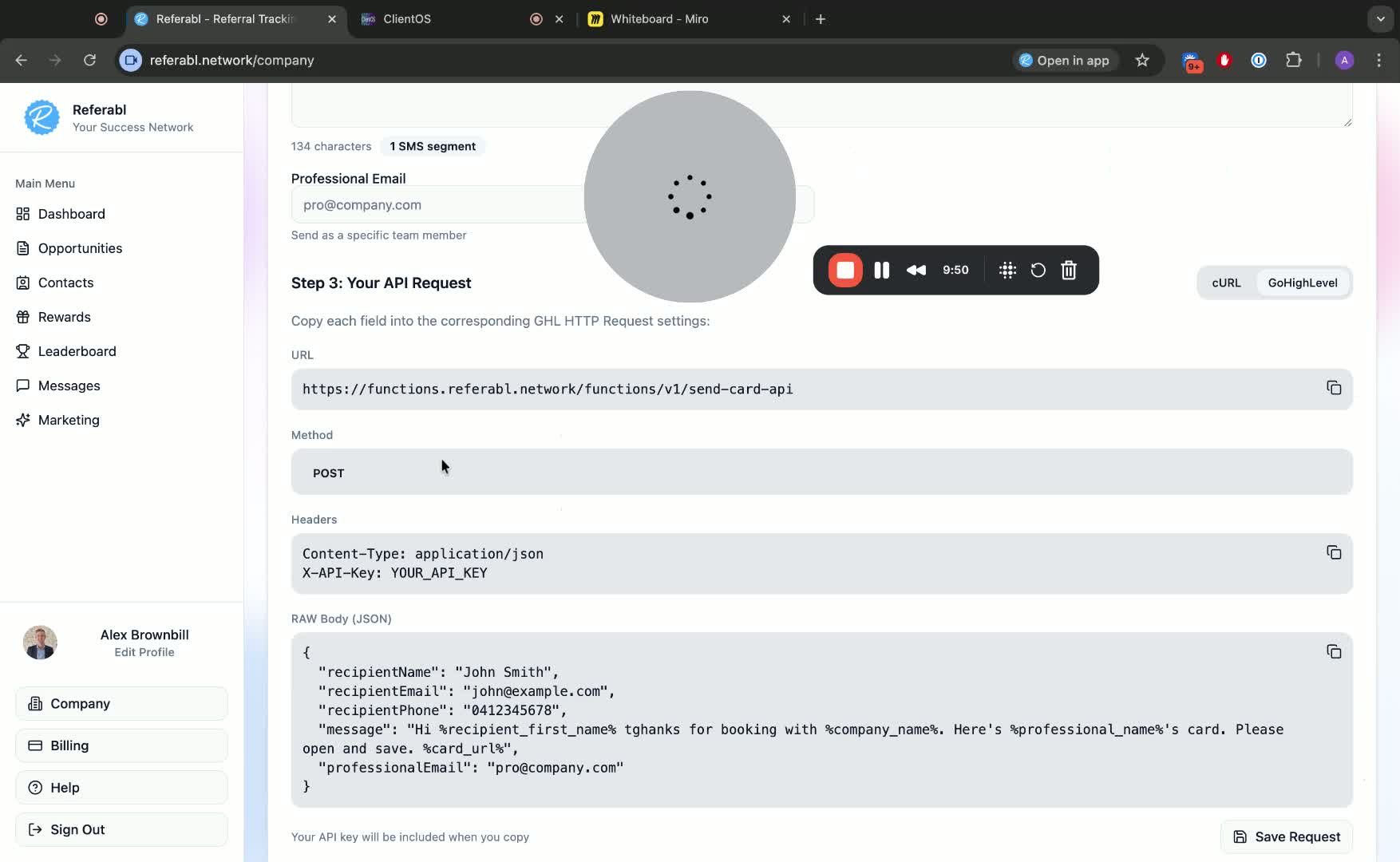
Add necessary headers:
Content-Type: application/json
X-API-Key: [Your API Key]
11. Formatting the Webhook Payload 10:37
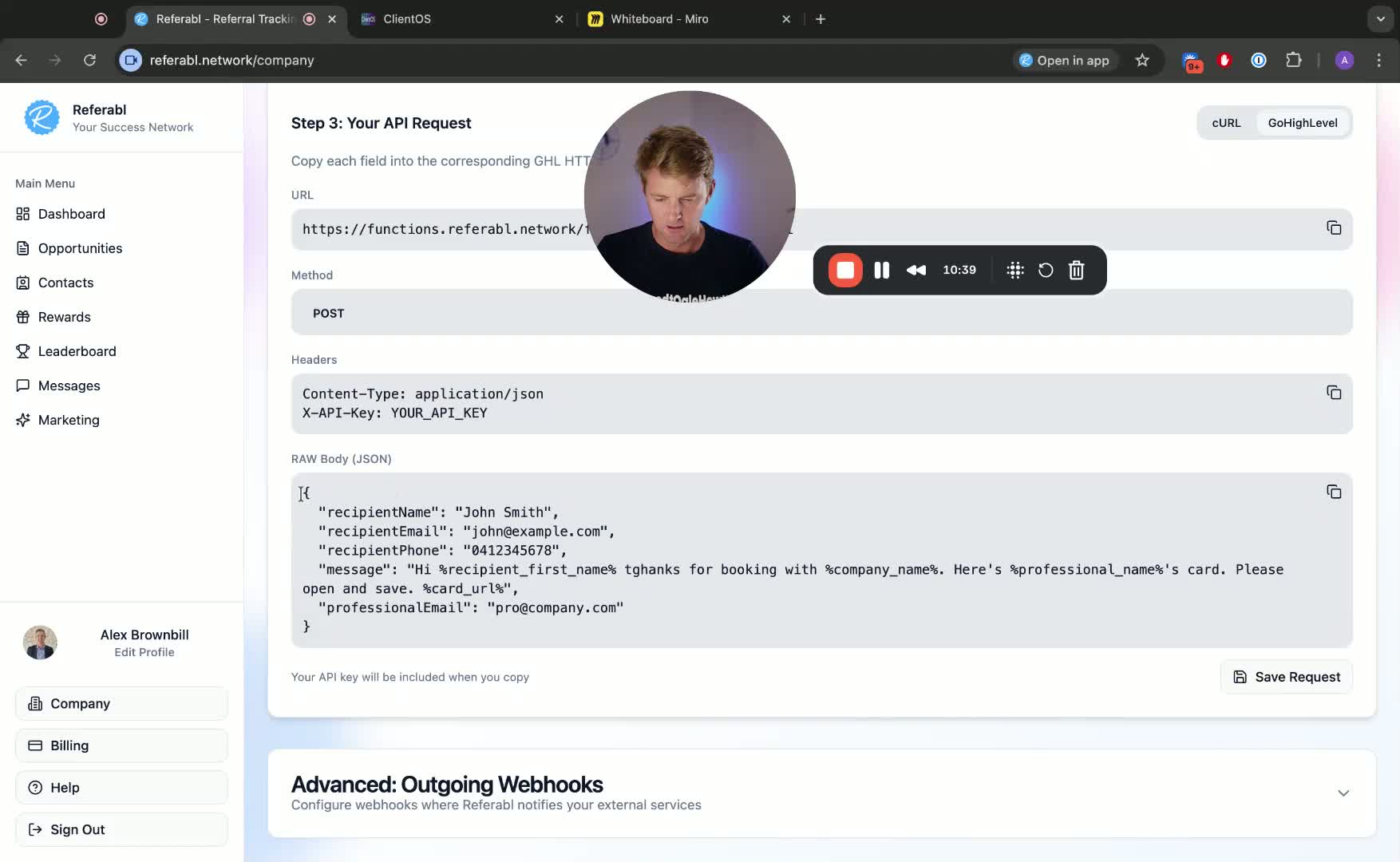
Ensure the payload contains the correct variables:
Use brackets for contact details (e.g., contact.name, contact.email).
Include the message and user email.
12. Testing the Setup 13:24
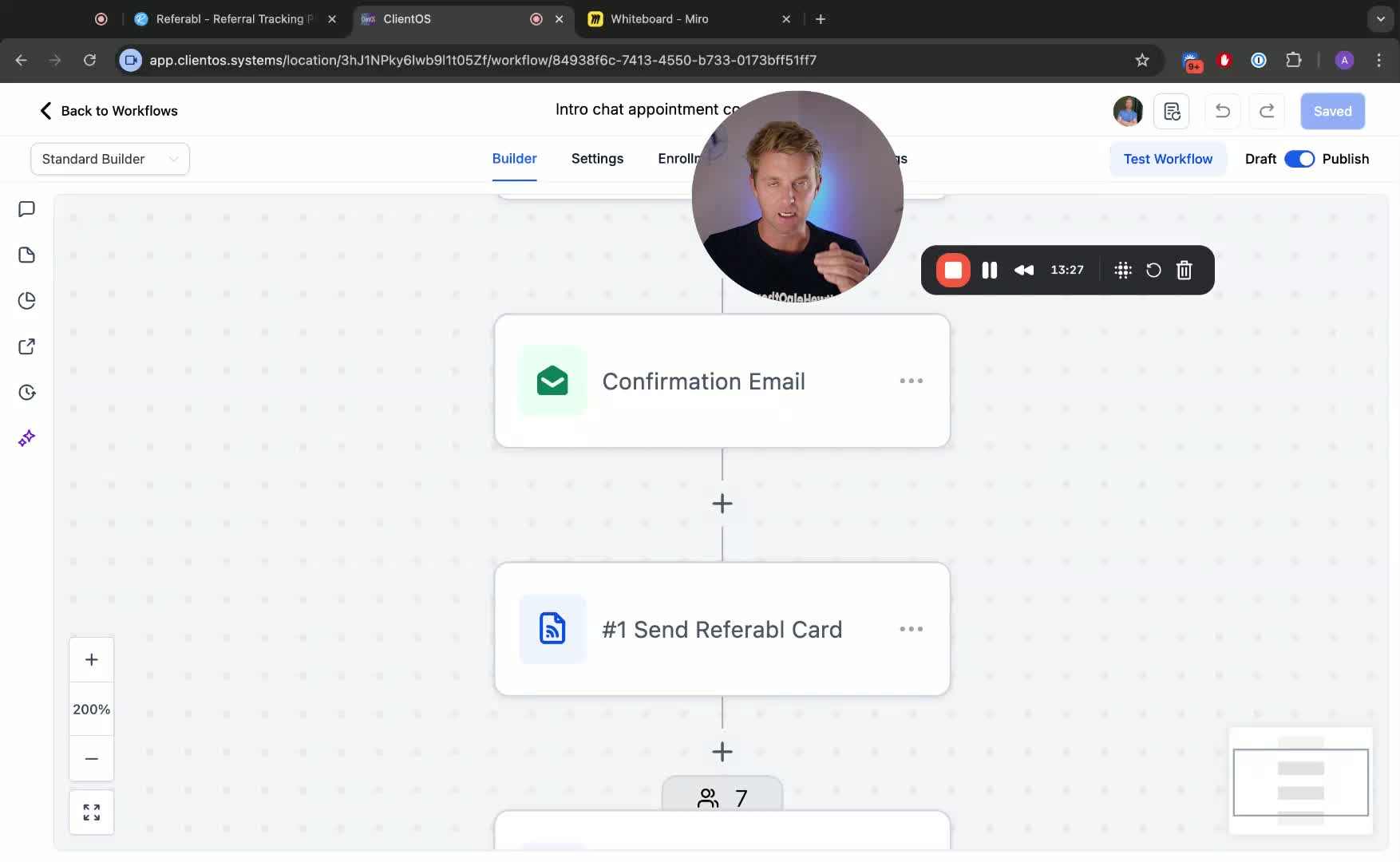
Save the action and test the webhook.
Ensure you are on the business plan and have funds in your account.