Required:
A credit or debit card.
A. Business Plan
https://loom.com/share/2d70dcb8d46f49f99edae5cf7a8e5db0
1. Access Billing Section 0:16
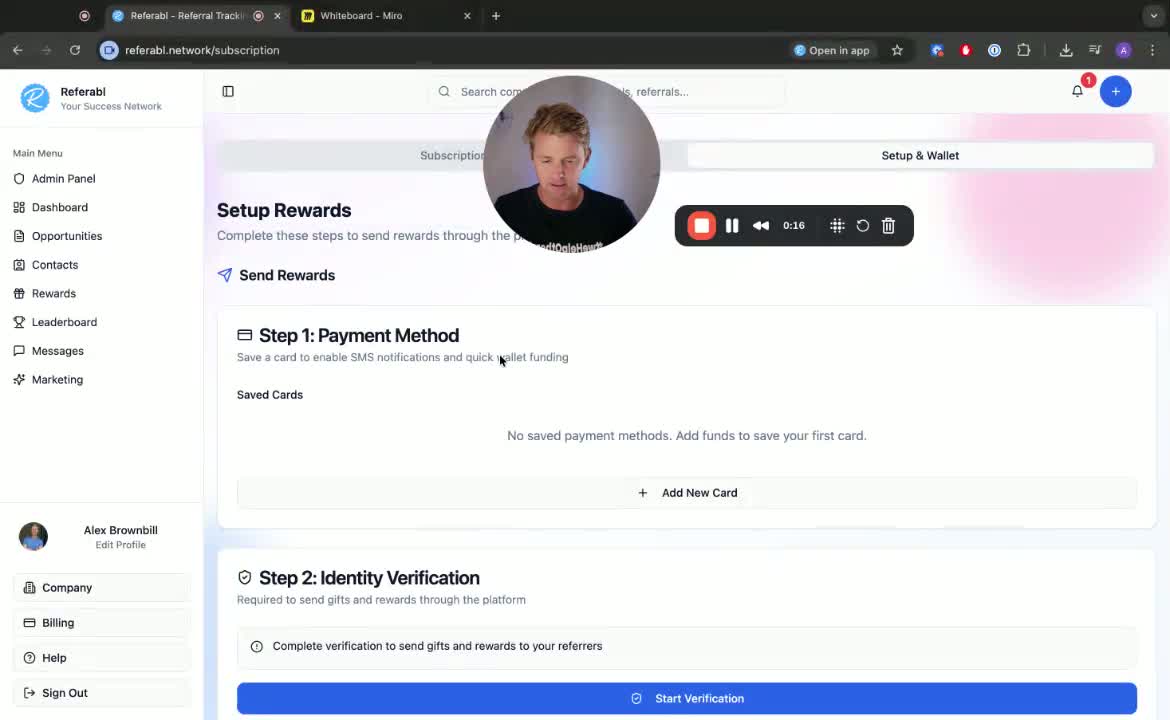
Navigate to the Billing section in your account.
Click on Setup and then select Wallet.
2. Add a New Card 0:23
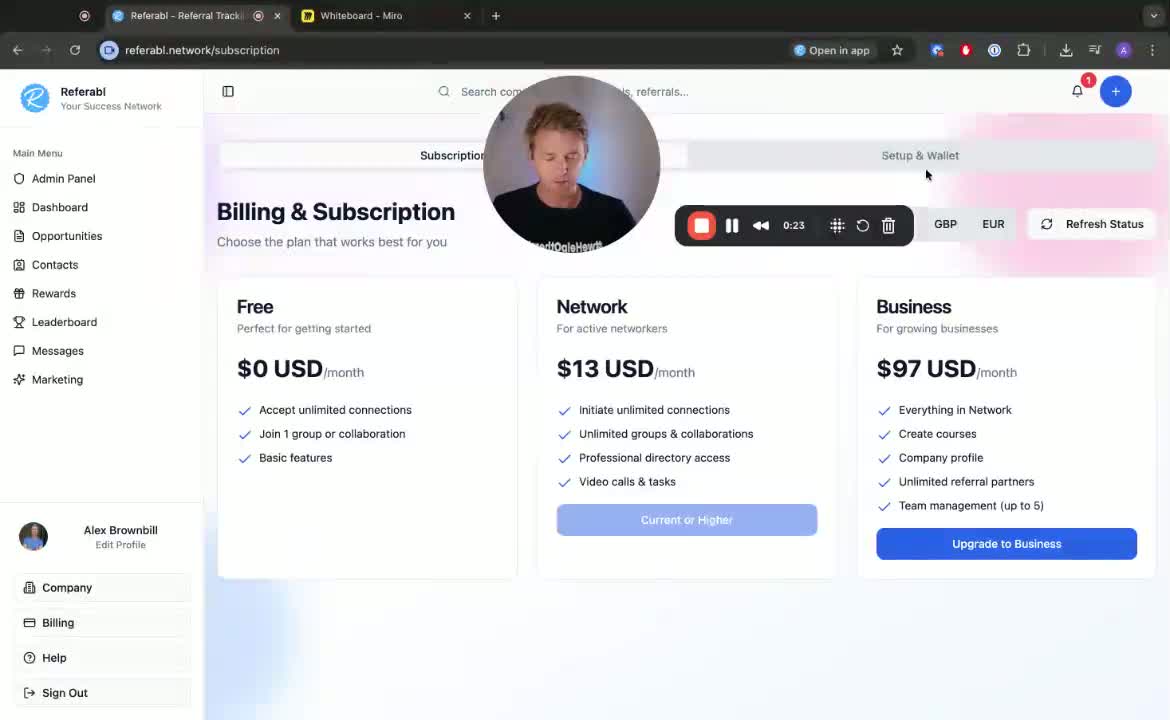
Click on Add New Card.
Fill out your card information (card number, expiration date, etc.).
Wait for a success message confirming the card has been added.
3. Set Default Card 0:52
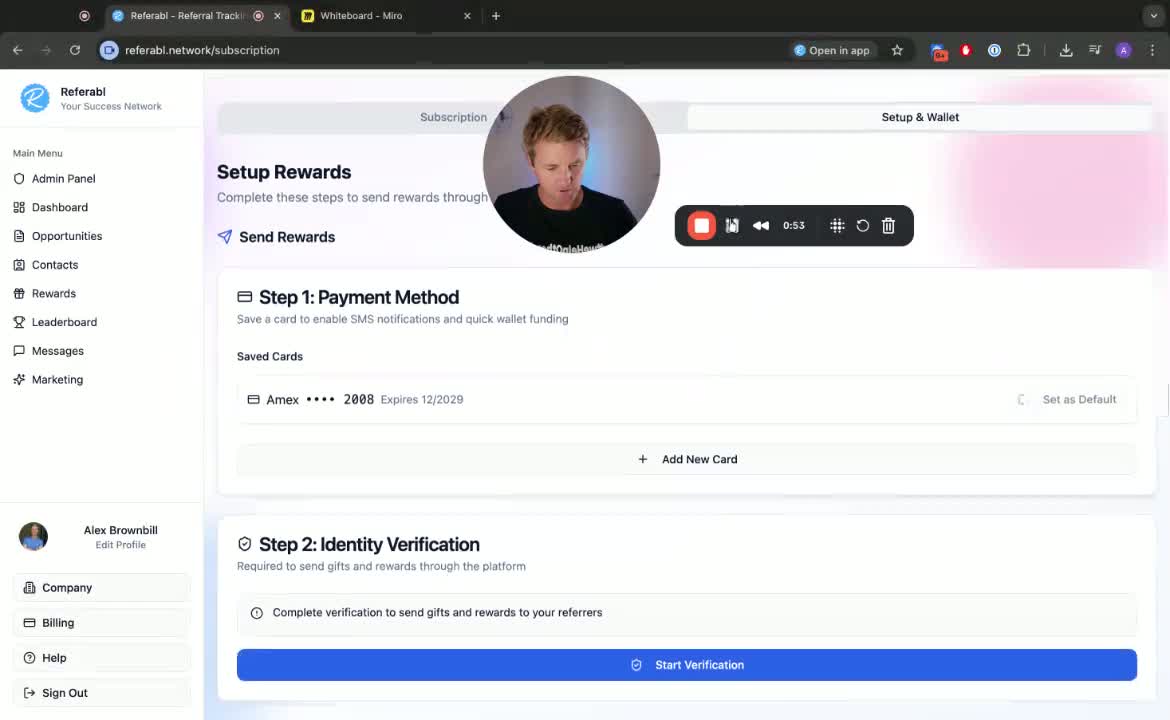
After adding your card, set it as the default card for transactions.
4. Set Up Auto Top-Up 1:05
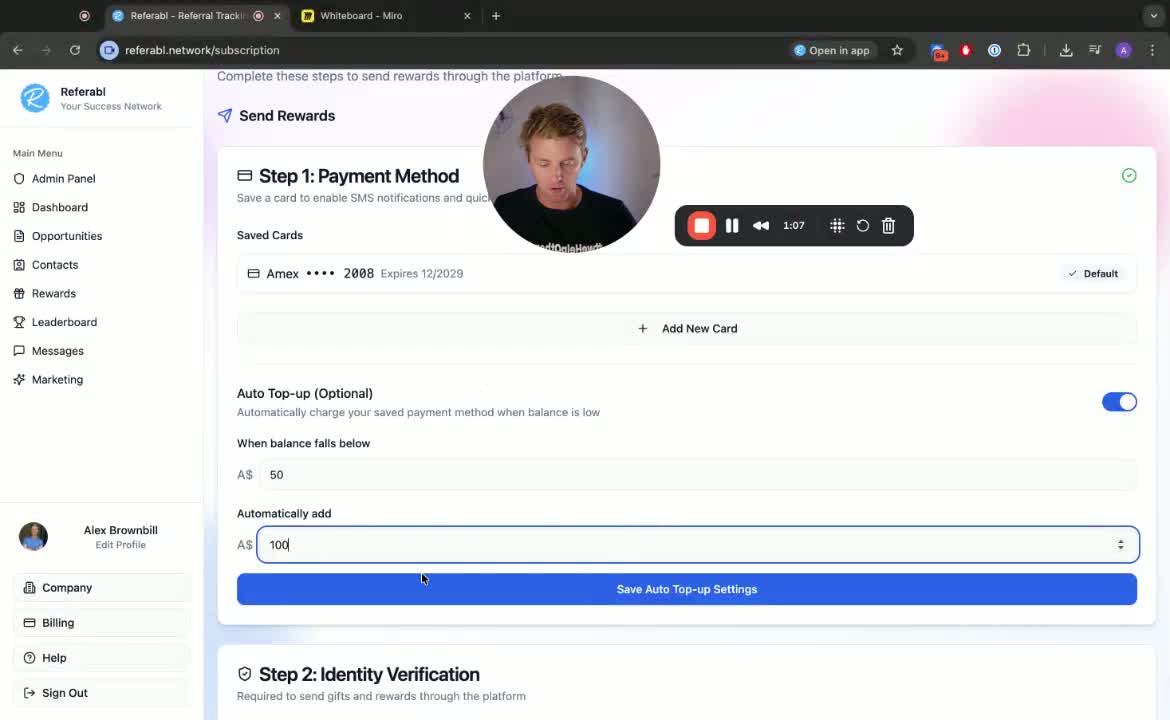
To avoid running low on funds, set up an auto top-up.
Specify the amount (e.g., when the balance falls below $50, add $X amount automatically).
5. View Transaction History 1:18
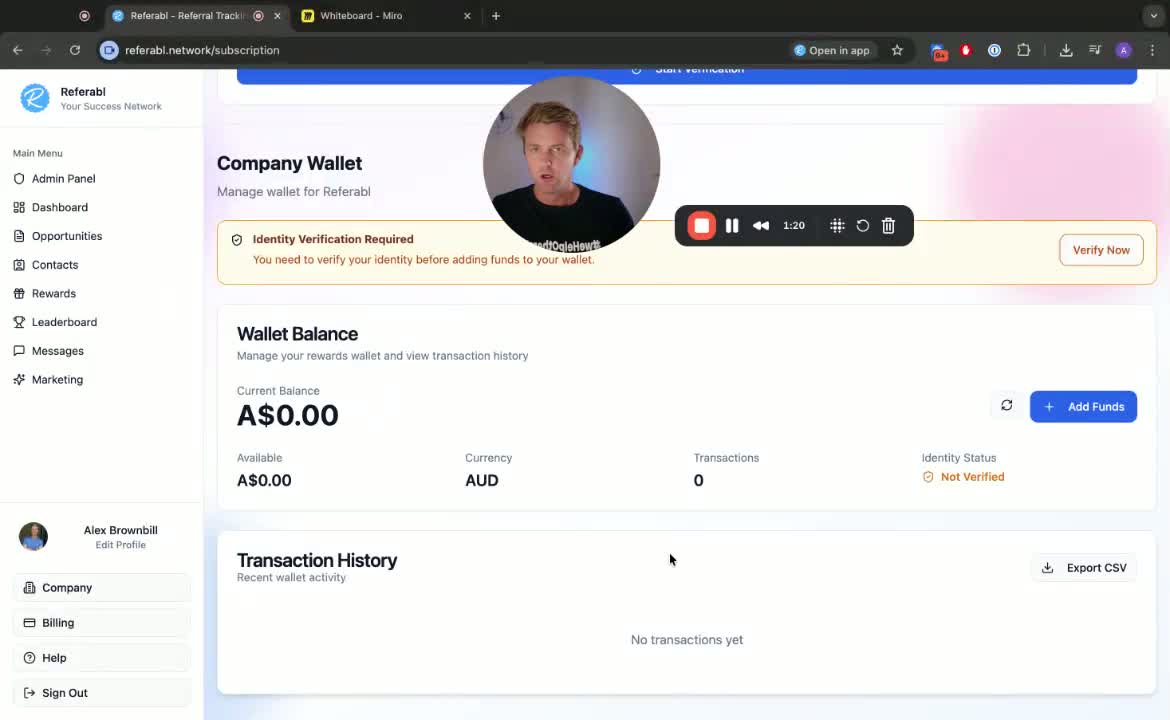
Check your company wallet to see the transaction history.
This includes all SMS and rewards sent out.
6. Manually Add Funds (Optional) 1:30
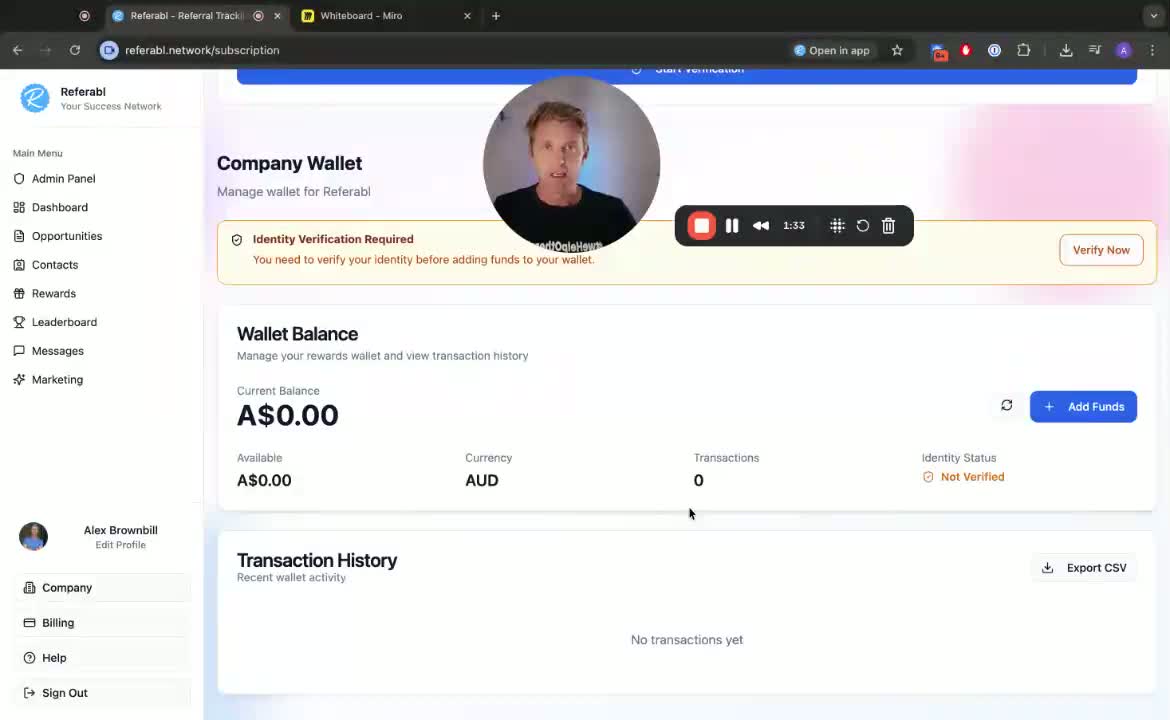
If you prefer to add funds manually, scroll down to wallet balance.
Click on Add Funds and enter the desired amount (e.g., $10).
Note that a platform fee may apply due to Stripe fees.
7. Troubleshooting Adding Funds 1:49
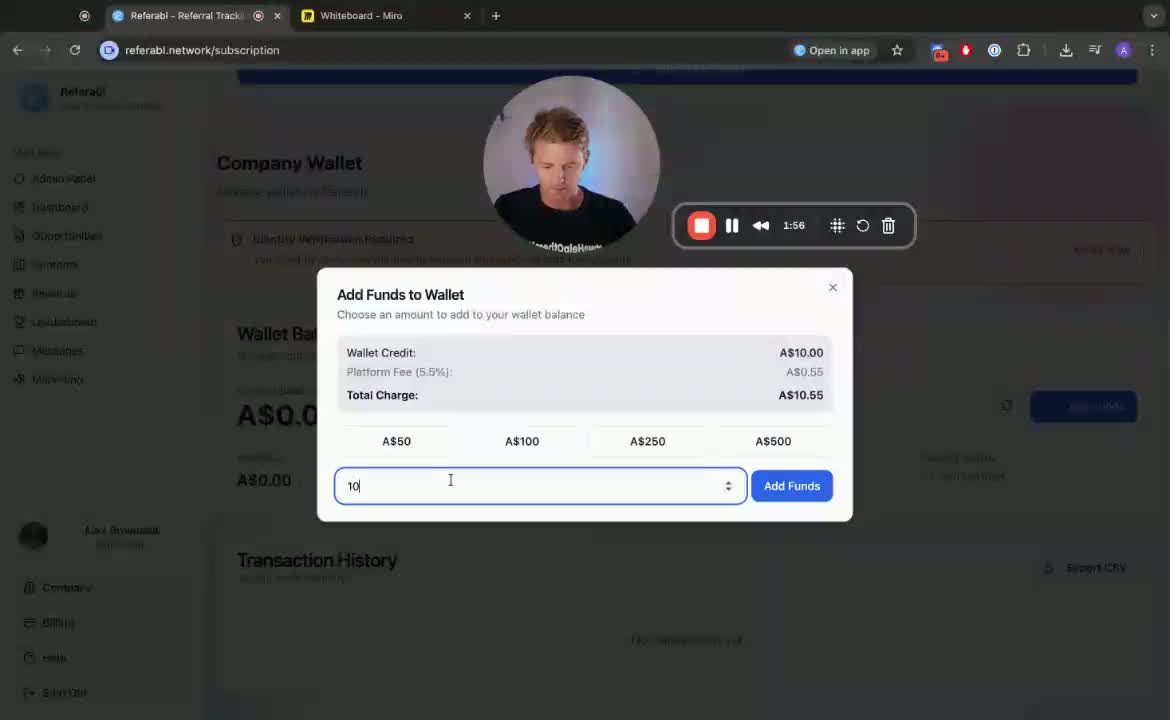
If you encounter issues while adding funds, ensure you follow the prompts correctly.
Confirm the amount and complete the transaction.
8. Upcoming Video on Identity Verification 2:23
Stay tuned for the next video explaining identity verification and its importance for sending rewards.